
Contact Us

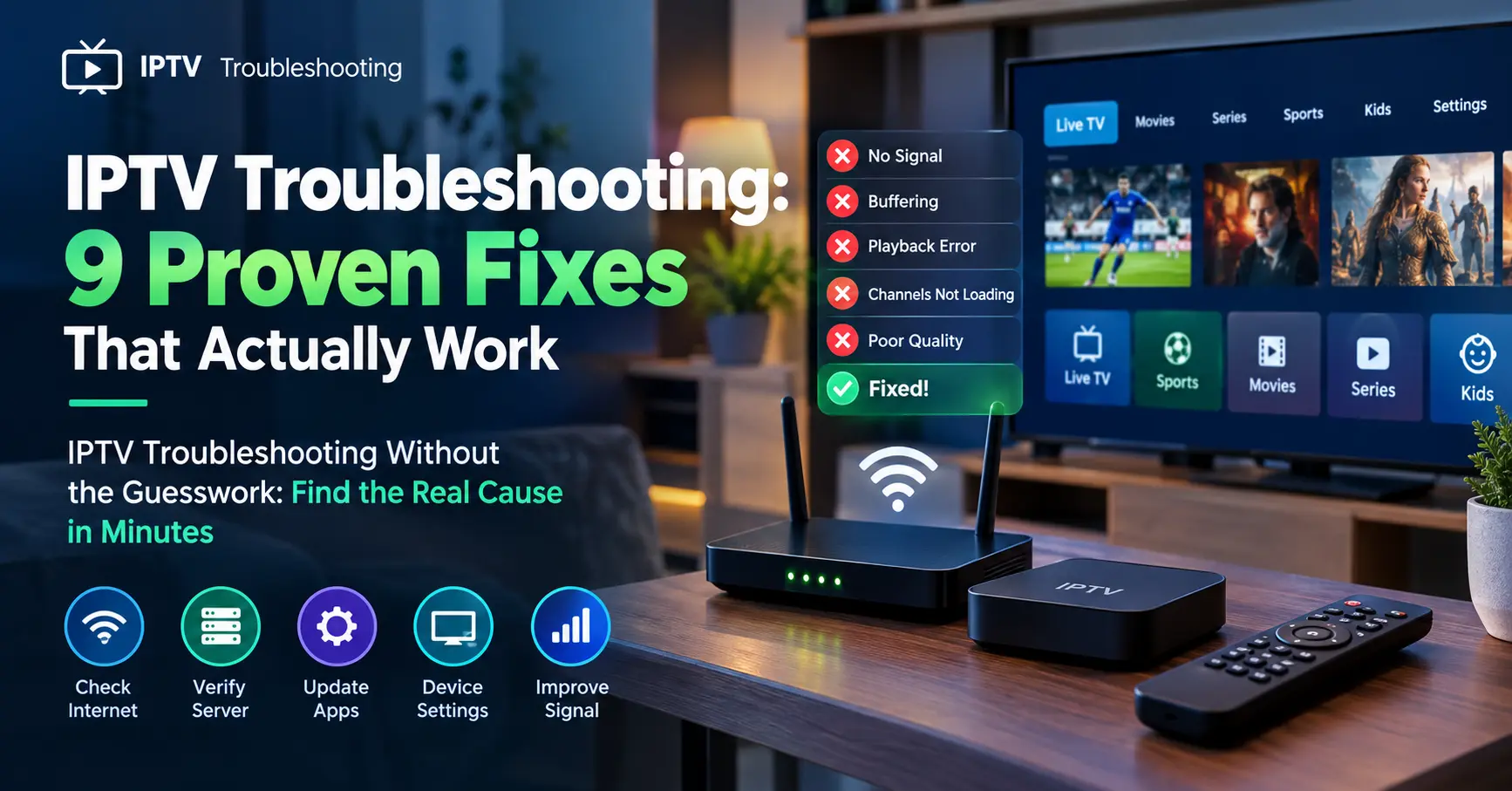
IPTV Troubleshooting Without the Guesswork: Find the Real Cause in Minutes
My brother-in-law rang me at 9.52pm on a Saturday, ten minutes before kick-off, convinced his IPTV subscription had died. Everything was spinning and nothing would load. I asked him one question: had he restarted the router? Silence, then a sheepish laugh, then a working stream within two minutes.
That little drama is why I wrote this guide on IPTV troubleshooting. Most faults feel catastrophic and turn out to be boring. I’ve spent years helping viewers, and people running services as an IPTV Reseller, sort real outages from home network gremlins, and the pattern is surprisingly consistent.
Let me be clear about who this is for. If you watch at home, you’ll find practical steps here that need no technical background. If you run a service, there’s a section written just for you, because your customers ask the same questions I’m about to answer.
Start Here: The Two-Minute Triage Before Any IPTV Troubleshooting
Before you touch a single setting, work out where the fault lives. There are only four suspects: your internet connection, your device, your app, or the service itself. Guess wrong and you’ll spend an evening reinstalling apps that were never broken.
Here’s the quick triage I use. It takes two minutes and rules out the usual offenders.
- Open YouTube or another streaming app on the same device. If that stutters too, the problem is your network, not your IPTV.
- Try the same channel on a second device. A different phone or TV tells you whether the app or the device is at fault.
- Try three different channels, including a popular one. One dead channel usually points to a source issue, while every channel dead points to your line or connection.
- Check the clock. Evening peaks between 7pm and 10pm strain home broadband across the UK.
Why bother with the order at all? Because every fix has a cost. Restarting a router costs a minute. Reinstalling an app costs your settings and your patience.
Notice that the list above doesn’t ask you to reset or delete anything. Good IPTV troubleshooting always starts with observation, and only then moves on to action.
Why Buffering Is Rarely Your Provider’s Fault
Buffering is the headline complaint, and it deserves an honest look. Yes, a provider with overloaded servers can cause it. But in my experience a clear majority of buffering complaints trace back to the home network, which makes it the best place to begin your IPTV troubleshooting.
Measure Before You Blame
Run a test with Speedtest by Ookla while the problem is happening, not an hour later. A standard HD live channel typically needs somewhere around 6 to 10 Mbps of steady throughput, and 4K can ask for 25 Mbps or more. Netflix publishes its own guidance of about 15 Mbps for Ultra HD, which is a handy rule of thumb for any live stream.
Speed isn’t the whole story, though. Look at ping and packet loss too. A line that shows 80 Mbps but drops packets will buffer far more than a steady 20 Mbps connection. Ofcom’s broadband research has regularly shown that delivered speeds can fall short of advertised ones, especially at peak times.
Evening congestion deserves its own mention. Between about 7pm and 10pm your neighbours are all streaming too, and the shared capacity in your street gets tight. If buffering appears at the same hours every day and vanishes by 2pm, you’ve found your answer. A wired connection helps, though it can’t fix a crowded street.
Wi-Fi Versus Cable
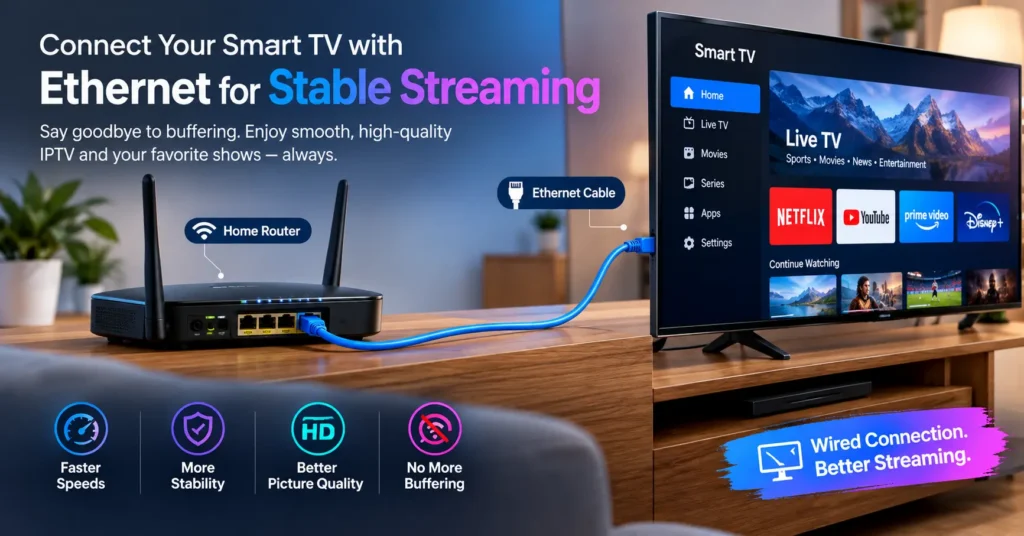
Wi-Fi is the quiet villain here. Thick walls, a microwave, neighbours’ routers on the same channel, a telly in the far bedroom: all of them chew through signal. If your device has an Ethernet port, use it. A £6 cable has solved more IPTV troubleshooting cases than any app setting I’ve ever changed.
| Connection type | Stability | Best for | Watch out for |
|---|---|---|---|
| Ethernet | Excellent | Main TV, 4K streams | Needs a cable run |
| Wi-Fi 5GHz | Good | Rooms near the router | Walls reduce range |
| Wi-Fi 2.4GHz | Fair | Distant rooms, basic HD | Crowded by neighbours |
| Powerline adapters | Variable | Rooms with no cable access | Depends on house wiring |
| Mesh Wi-Fi | Good | Larger homes | Higher cost |
No Ethernet port? Switch to the 5GHz band, lift the router off the floor, and consider a mesh system. None of these options is perfect, and powerline adapters in older houses can be hit and miss. Still, they’re cheaper than changing provider. For a deeper look at home network tuning, see how to reduce IPTV buffering at home.
DNS is another cheap trick. Your router uses your broadband provider’s DNS servers by default, and they’re not always quick. Switching to Cloudflare’s 1.1.1.1 or Google’s 8.8.8.8 takes two minutes in your router settings and can noticeably cut channel loading times. It won’t turn a weak line into a strong one, so keep your expectations sensible.
Login Errors, Dead Playlists and the Expired Line Problem
Now to the faults that happen before a single frame appears. Login failures, “invalid credentials” messages, empty channel lists, and playlists that load for ten seconds and then vanish all feel mysterious. They’re the easiest kind of IPTV troubleshooting, because the causes come from a short list:
- A typo in the username, password or portal URL (copy and paste often adds a hidden space at the end)
- An expired subscription or a used-up connection limit
- One line running on more devices than the plan allows
- An outdated M3U link or Xtream codes login after the provider moved servers
- A wrong date and time on the device, which breaks secure connections
That last one surprises people. If your TV’s clock is wrong, secure connections can fail and the app throws a vague error. Set the date and time to automatic and try again.
Connection limits deserve a special mention. If someone else in the house is watching on the same line, your second stream may be refused, and the error won’t say so clearly. Check the plan details before assuming anything is broken.
When the credentials are right and the line looks active, ask your provider to confirm the status. A decent provider can check it in seconds from their iptv panel and tell you whether the line is active, expired or blocked. If they can’t, that tells you something about the provider.
Freezing, Green Screens and Audio That Drifts
Freezing and pixelation feel different from buffering, and the cause often differs too. Buffering means data isn’t arriving fast enough. Freezing and green blocks usually mean data is arriving damaged, or that your device can’t decode it quickly enough. This corner of IPTV troubleshooting rewards a little patience.
Start with the player. Try a different decoder setting if your app offers one. Hardware decoding is quicker on most modern boxes, but software decoding can rescue a stubborn channel on an older device. I’ve seen each flip a broken stream into a smooth one in under a minute.
Then look at stream format. Some apps let you choose between MPEG-TS and HLS. HLS handles shaky connections more gracefully, while TS can feel snappier when your line is solid. Which is better for you? Test both on the same channel and see.
Audio drifting out of sync is a different beast. Players such as VLC, TiviMate and IPTV Smarters Pro include an audio delay setting. Nudging it by a few hundred milliseconds often cures lip-sync trouble on a single channel. If every channel is out of sync, check whether your TV or soundbar is adding its own processing delay.
What about your broadband provider slowing streaming traffic? Some viewers swear a VPN fixes it. Sometimes it does. Often it adds delay and makes things worse, so treat it as an experiment rather than a cure, and switch it off if the picture gets no better.
Heat matters too. A cheap streaming stick running hot will throttle and stutter. Give it airflow, and use its proper power adapter rather than a spare USB port on the TV.
When It Really Is the Service: Spotting a Genuine Outage
I don’t want to give the impression that providers are never at fault. They are, sometimes. Servers fail, upstream sources drop, and maintenance windows overrun. The skill is recognising a real outage quickly so you stop wasting your evening on settings.
The signs are fairly clear. Many channels fail at once, on several devices, across different connections. Friends or other customers report the same problem within minutes. Your own broadband works perfectly for everything else. When all three line up, the fault isn’t in your living room.
Check whether your provider posts status updates through its support channel or website. A good one tells customers early, even when the news is bad. Silence during a widespread fault is a poor sign, and a pattern of it is a reason to look elsewhere.
When an outage is confirmed, resist the urge to reset everything. Wait fifteen minutes, try one channel, and note the time. Keeping a short log of when faults occur gives you evidence if you ever need to ask for a credit or a conversation about reliability.
Your Device and App Might Be the Real Culprit
Apps get blamed last and should be checked earlier. Cached data builds up, updates introduce bugs, and some devices simply run out of memory when loading enormous channel lists.
Here’s what I’d check on the most common hardware:
- Amazon Fire TV Stick: Clear the app cache under Settings, then Applications. Lower-memory sticks struggle with huge programme guide files.
- Android TV and Google TV boxes: Force stop the app, clear the cache, then reload the playlist.
- Samsung and LG smart TVs: Check for firmware updates. Older models may stop supporting newer app versions.
- Apple TV: Remove and reinstall the app, since the cache can’t be cleared on its own.
- Windows and Mac: VLC makes an excellent test player to confirm whether the stream itself is healthy.
Here’s a trade-off worth admitting. Reinstalling an app clears bugs but also wipes your settings, so note your login details first. And if a smart TV is more than six or seven years old, it may never run modern apps well. A £30 to £40 streaming stick is often kinder than endless tinkering. If you’re shopping, best streaming devices for IPTV covers the options.
Programme guide problems follow similar logic. When the guide is blank or wrong, refresh the guide source, check your time zone is set to London time, and give it a few minutes to download. Impatience is the enemy here.
What an IPTV Reseller Should Check Before Answering a Ticket
Everything above is written for viewers, yet it matters just as much to anyone running a service. If you’re an IPTV Reseller, your support inbox is where these faults land first, and the way you respond decides whether a customer stays or leaves. Resellers who treat IPTV troubleshooting as part of the product, not a chore, keep far more customers.
I’ve watched resellers lose good customers by pasting the same “restart your device” reply to every message. Here’s the sequence I’d suggest instead. Check the line status in your iptv panel first: is it active, what’s the expiry date, how many connections are in use, and when did the last successful login happen? Those details answer perhaps half of all tickets without asking the customer a thing.
Next, ask for three things: the device model, the app name and version, and a screenshot of any error message. It sounds basic, but it saves three rounds of back and forth. Then watch for patterns. If several customers report the same channel failing at the same moment, you’re looking at a source problem to escalate upstream, not a hundred separate home network faults.
Credits are the other recurring headache. When you buy iptv credits in bulk, keep a simple log of which lines you’ve activated and renewed. Mismatches between credits spent and lines active cause a lot of “my account stopped working” tickets. It’s also sensible to test one activation before you commit to a larger batch, and to buy iptv credits only from a supplier whose panel shows a clear history.
Which brings up supplier choice, the foundation of everything. A shaky upstream creates problems no amount of customer support can fix. If you’re weighing options, read Choosing an iptv reseller panel provider without getting burned → / iptv reseller panel provider before you spend a penny, and make sure any content you resell is properly licensed. It’s the less glamorous part of the job, though it protects you and your customers alike.
The Printable IPTV Troubleshooting Checklist
Here’s the condensed version. Pin it near the router, or paste it into your support macros.
- Restart the router and the streaming device, waiting 30 seconds between switching off and on.
- Test another streaming app on the same device to isolate the network.
- Switch from Wi-Fi to Ethernet, or move to the 5GHz band.
- Run a speed test during the fault and note speed, ping and packet loss.
- Check the login details, portal URL and subscription status.
- Change the DNS on your router to Cloudflare (1.1.1.1) or Google (8.8.8.8).
- Switch the decoder or stream format inside the app.
- Clear the app cache and update the app, reinstalling only if you must.
- Contact your provider with the device, app, time of fault and exact error message.
Notice the order. Cheap, reversible steps come first, and anything destructive waits until the end. That’s the discipline behind sound IPTV troubleshooting, and it spares you the reinstall spiral.
Frequently Asked Questions
What is the first step in IPTV troubleshooting?
Restart your router and your streaming device, leaving them off for about 30 seconds. Then test a different app on the same device to see whether your internet connection is the problem. This two-step check solves a surprising number of faults. It also tells you where to look next, which is the real point of good IPTV troubleshooting.
Why does my IPTV keep buffering even with fast internet?
A fast speed test doesn’t guarantee a stable connection. Wi-Fi interference, packet loss and evening congestion can all cause buffering on a line that tests well. Try a wired connection first, then change your DNS and test at different times of day. If buffering follows you to every device and every network, the stream source may be the issue.
How does an iptv panel help with IPTV troubleshooting?
An iptv panel gives a provider or reseller a direct view of each line’s status, expiry date and connection count. That means they can confirm in seconds whether a login problem is down to an expired line or a connection limit. It also helps spot patterns across customers. Without that visibility, support turns into guesswork.
Should I buy iptv credits before testing a provider?
I’d advise against committing to a large batch straight away. Buy iptv credits in a small quantity, activate one line and test it across your busiest viewing hours. Check how quickly support responds and whether the panel history is clear. If everything holds up for a couple of weeks, scaling up becomes a far safer decision.
Can an IPTV Reseller fix streaming faults without involving the supplier?
Often, yes. Most tickets come from home networks, device settings, wrong logins or expired lines, and a reseller can resolve those alone using the steps in this guide. Source-level problems, such as a channel failing for many customers at once, need to go upstream. Keeping notes on when and where faults occur makes those escalations much quicker.
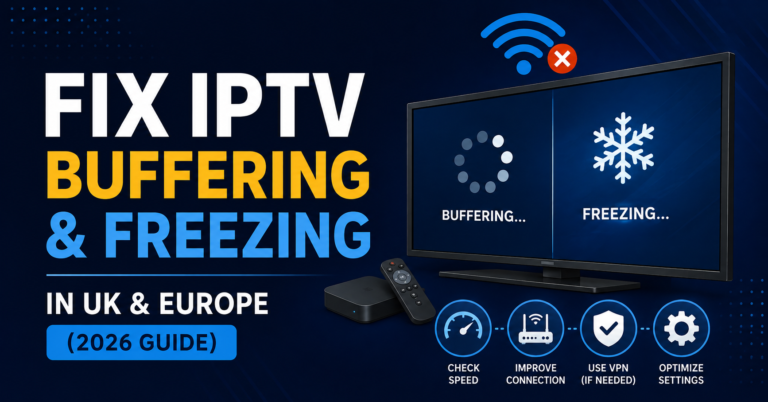
[…] them, and whether a speed test shows stable broadband. If you want a fuller process, our guide on IPTV Troubleshooting Without the Guesswork: Find the Real Cause in Minutes walks through it step by […]