Contact Us

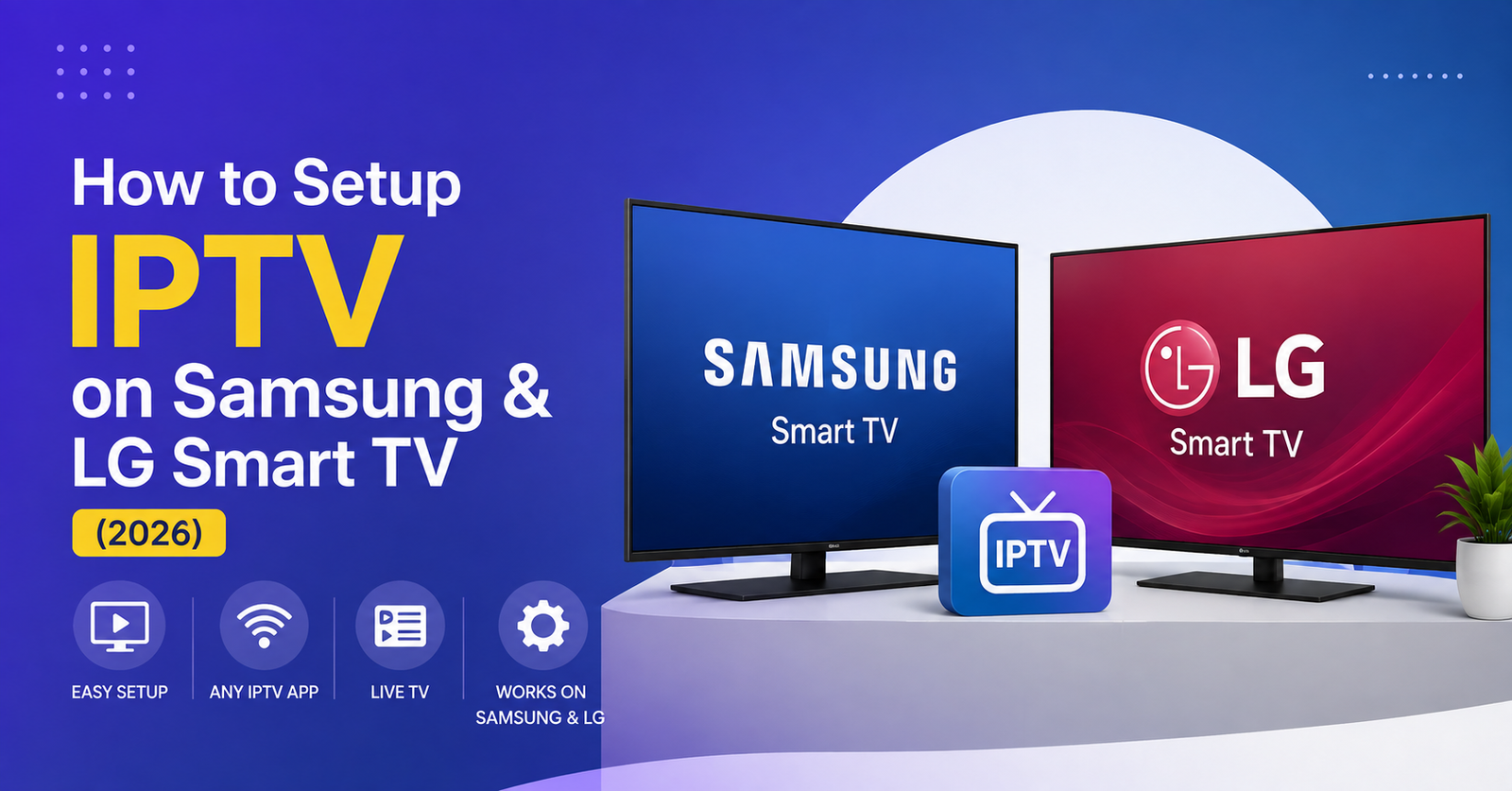
How to Setup IPTV on Samsung & LG Smart TV: 2026 Guide
To Setup IPTV on Samsung & LG Smart TV, you install a compatible player app from the Samsung Store or LG Content Store, then add your subscription using either a portal URL with a MAC address, or an M3U playlist link with a username and password. Neither Samsung’s Tizen system nor LG’s webOS allows sideloading APK files the way Firestick does, so the app has to come from the official store, and your provider needs to give you login details that match the app you choose. Once the app and login are in place, most setups finish in under ten minutes.
[ez-toc]
What You Need Before You Start
Before touching the remote, gather three things: a stable internet connection on the TV itself (not just the router being online), the exact login details from your IPTV provider, and the name of the app your provider recommends. Samsung and LG TVs handle IPTV differently from Android boxes, so a generic guide that assumes sideloading will not work here. Wi-Fi is fine for most households, but a wired connection through an Ethernet adapter reduces buffering during peak evening hours when everyone nearby is streaming at once.
Check your IPTV Reseller Panel provider has actually sent you one of two login formats. The first is a portal URL paired with your TV’s MAC address, used by portal-style apps. The second is an M3U or Xtream Codes link with a username and password, used by playlist-style apps. Using the wrong format in the wrong app is the single most common reason setups fail on the first attempt.
Setup IPTV on Samsung & LG Smart TV: Why the Process Differs From Firestick
Amazon Firestick runs on Fire OS, which is open enough to allow the Downloader app and direct APK installs. Samsung’s Tizen and LG’s webOS are closed systems built for broadcast and streaming apps distributed through their own stores. That is not a limitation invented by manufacturers to annoy IPTV users, it is how both platforms have worked for years, and it means every app you use has to be listed officially.
The upside is reliability. Store-distributed apps get updated automatically, rarely crash on boot, and tend to survive TV firmware updates without breaking, which is a genuine advantage over sideloaded apps on other devices that sometimes stop working after a system update.
Step by Step: Installing an IPTV App on LG webOS
- Press the Home button and open the LG Content Store from the app row.
- Search for your provider’s recommended player. Ora Player and Smart IPTV are among the more common options accepted by UK and European IPTV providers.
- Install the app and open it once it finishes downloading.
- If the app asks for an M3U URL, enter the playlist link exactly as your provider sent it, including the http or https prefix.
- If the app instead shows a MAC address on screen, copy that MAC address and send it back to your provider so they can activate the portal against that specific TV.
- Restart the app after entering your details. Most channel lists load within a minute on a decent connection.
Pro tip: Write your MAC address down somewhere before you start. LG displays it once inside the app and it is easy to lose track of which digits you copied correctly.
Step by Step: Installing an IPTV App on Samsung Tizen
- Open the Samsung Store from the Smart Hub row on your remote.
- Search for the player app your provider recommends by name, spelling it exactly as given.
- Download and launch the app.
- Choose the login method that matches what your provider sent, either Xtream Codes with a username and password, or M3U with a direct playlist link.
- Enter the details carefully. Samsung remotes make typing long URLs slow, so double check for missing characters before confirming.
- Give the app a minute to pull the full channel and video on demand list on first load.
Pro tip: If the on-screen keyboard keeps autocorrecting your playlist link, switch to the numeric or symbol keyboard mode before typing the URL, which usually stops Samsung’s predictive text from interfering.
Entering Your Playlist or Portal Details Correctly
This step causes more support tickets than anything else in the setup process. A portal URL, an M3U link and an Xtream Codes login look similar but are not interchangeable, and each app expects one specific format.
If your provider gave you a username, password and a server URL, that is an Xtream Codes login, and it belongs in an app that has a dedicated Xtream Codes field, not a plain M3U box. If instead you received one single long link starting with http, that is usually an M3U playlist, and it goes into an M3U or playlist URL field. Pasting an M3U link into an Xtream Codes username field, or the reverse, is the most frequent cause of a blank channel list.
Common Mistakes When You Setup IPTV on Samsung & LG Smart TV
Below are the errors that come up most often once the app is installed but channels still will not load.
| Mistake | Better approach |
|---|---|
| Pasting an M3U link into an Xtream Codes field | Match the login type your provider sent to the exact field the app asks for |
| Installing the first similarly named app in the store | Check the developer name matches what your provider recommended |
| Closing the app the moment channels appear empty | Wait a minute for the full list to load before assuming it failed |
| Typing long URLs with autocorrect switched on | Switch the remote keyboard to symbol or numeric mode first |
| Assuming Wi-Fi signal at the router means the TV has a strong connection | Check the TV’s own network status menu, or use a wired adapter if buffering persists |
Why Samsung and LG Sometimes Feel Slower to Set Up
Compared with a Firestick or an Android TV box, Samsung and LG setups can feel more restrictive because there is no way to install an unlisted app, no way to load a custom launcher, and app choice depends entirely on what each manufacturer’s store currently carries in your country. This is a genuine trade off, not a fault on your part. If your provider’s preferred app is not available on either store in your region, an Android TV box or Firestick paired with the same subscription is usually the quicker route, since those platforms accept a wider range of players.
Subscriber Guidance for a Smoother Setup
Before you commit to a paid plan, ask your provider whether they support Samsung and LG specifically, since not every service builds or maintains an app for both platforms equally. Confirm how many devices your subscription covers, because Samsung and LG each count as a separate connection alongside any phone or Firestick you already use. Keep a screenshot of your login details somewhere safe, since re-entering them after a factory reset or a TV software update is common and support teams cannot always retrieve them instantly.
You can compare current plans and device coverage on the Cine GB subscription page before deciding which length of plan suits your household.
Reseller Guidance if Customers Ask About Smart TV Setup
If you run an IPTV reseller business, Samsung and LG questions will make up a steady share of your support messages, since these are two of the most common TVs in UK and European homes. Keep a short internal note with the exact app names, current store availability, and login format for each customer segment, so your team gives consistent answers instead of improvising each time. Screen sharing over WhatsApp during the first login attempt cuts repeat tickets significantly, particularly for customers entering long Xtream Codes URLs on a TV remote for the first time.
Resellers managing multiple customer devices across Samsung, LG, Firestick and Android can review credit and dashboard options through the IPTV Reseller Panels page, which covers how device variety fits into panel management.
Pro tip: Keep a short reference document listing which app your customers should install per platform, since store listings and app names do occasionally change and outdated instructions create avoidable support load.
Where to Find Device Specific Downloads
Provider websites often keep a dedicated downloads section listing the exact recommended app per platform, which saves you searching the store blind. Cine GB, for example, lists its recommended Samsung and LG app on the downloads page, alongside separate guidance for Firestick, Windows and Android devices. Checking that page before you open the store search bar avoids installing the wrong player entirely.
Pro tip: If two similarly named apps appear in the store search results, check the developer name against what your provider told you. Copycat apps with near identical names do exist on both the Samsung and LG stores.
For general device compatibility and setup walkthroughs across other platforms, Cine GB also maintains a guides section covering additional troubleshooting topics beyond Samsung and LG.
Frequently Asked Questions
Can I sideload an IPTV APK on a Samsung or LG Smart TV?
No. Both Tizen and webOS restrict installation to apps listed in their official stores, so sideloading in the way you would on a Firestick is not possible without extra hardware most households do not use.
Why does my app open but show no channels on my Samsung or LG TV?
This usually means the login details were entered in the wrong field type, an M3U link placed into an Xtream Codes field or the reverse, or the app has not been given enough time to finish loading the full playlist on first launch.
Do I need a MAC address for every IPTV app?
Only portal style apps require a MAC address, which the app itself displays so your provider can activate it. Playlist style apps using M3U or Xtream Codes logins do not need a MAC address at all.
Is one app better than another for Samsung and LG?
It depends on what your provider supports and maintains, rather than one app being universally best. Ask your provider which app they actively support before installing anything, since an unsupported app can leave you without help if something breaks.
Will my IPTV setup survive a TV software update?
Store-installed apps generally survive firmware updates better than sideloaded apps on other platforms, though it is still sensible to keep your login details saved somewhere in case a reinstall is ever needed.
Can I use the same subscription on both a Samsung TV and an LG TV?
That depends on how many device connections your plan includes. Check your subscription’s connection limit before adding a second Smart TV, since each one typically counts separately.
Conclusion
To Setup IPTV on Samsung & LG Smart TV comes down to picking the right store app for your provider, entering the correct login format, and giving the channel list a minute to load. It is a more controlled process than sideloading on a Firestick, with fewer moving parts once the details are entered correctly, though app availability does depend on your country’s store listings. If channels still will not load after checking the login format, contacting your provider’s support team directly is faster than repeated troubleshooting alone.
Setup Checklist
- Confirm your provider supports a Samsung Store or LG Content Store app before subscribing
- Check whether your login is a portal MAC address or an Xtream Codes and M3U format
- Install the app from the official store only, never from a third-party link
- Enter playlist or portal details exactly as sent, checking for typos on the remote keyboard
- Give the app a minute to load the full channel list before assuming it has failed
- Save a screenshot of your login details in case a reinstall is needed later
- Confirm how many device connections your subscription covers before adding a second TV