Contact Us
IPTV Android TV Setup Guide for UK Viewers (2026)
Setting up IPTV on an Android TV box comes down to three things: installing a compatible player app, entering your playlist or Xtream Codes details correctly, and getting your network stable enough to stream without constant buffering. This IPTV Android TV Setup Guide walks through each stage in order, including the settings people usually skip and the reasons channels sometimes fail to load even when everything looks correct on screen.
Android TV was built with app-based streaming in mind, which makes it one of the more straightforward platforms for IPTV once you know which settings actually matter.
[ez-toc]
Before You Start: What You Actually Need
Three things need to be in place before installation is worth attempting. Without any one of them, the setup will technically finish but the picture won’t behave.
You need an active IPTV subscription with your login credentials or M3U playlist URL to hand, an Android TV device running a reasonably current firmware version, and a broadband connection that isn’t shared heavily with other streaming or downloading during viewing hours. Skipping the connection check is the most common reason people blame the app when the actual problem is bandwidth.
Older Android TV boxes, particularly anything running Android 7 or earlier, can still work but tend to struggle with 4K streams and multi-screen EPG data. If your box is more than four or five years old, expect some compromises on picture quality rather than a broken setup entirely.
Choosing a Player App
Most IPTV services in the UK are delivered through Xtream Codes-compatible panels, which means the player app matters less than getting the connection details right. That said, not every app on the Play Store handles EPG data, catch-up, or multi-connection accounts equally well.
Look for an app that supports Xtream Codes API login directly, rather than only accepting a raw M3U link. The API method pulls categories, EPG, and catch-up automatically, while M3U-only apps often need a separate EPG URL entered manually, which is a step people forget and then wonder why their guide data is empty.
Install the app through the Google Play Store where possible. Sideloading APKs from outside the Play Store is common in the IPTV space, but it introduces update and security risks that aren’t worth taking when a Play Store alternative exists.
IPTV Android TV Setup Guide: Entering Your Playlist
This is the step most people search for directly, and it’s shorter than the surrounding research suggests.
Open the app and select the option for Xtream Codes login (sometimes labelled “API” or “Portal”). You’ll need three pieces of information: the server URL or portal address, your username, and your password. These come from your provider or IPTV reseller panel, not from the app itself.
If your provider only issued an M3U URL rather than Xtream Codes credentials, choose the “Add Playlist by URL” option instead and paste the link exactly as given, including any parameters after the .m3u8 extension. A single missing character in the URL is enough to return an empty channel list.
Once entered, give the app a moment to sync. First-time loading pulls the entire channel list and EPG data, which can take anywhere from a few seconds to a couple of minutes depending on the size of the package and your connection speed.
Why Channels Won’t Load After Setup
When the login goes through but channels don’t appear, the cause is nearly always one of four things.
The subscription may have expired or hit its connection limit, meaning another device is already using the same login simultaneously. Xtream Codes accounts typically allow one active stream per connection slot, so a second device logging in with identical details will either fail outright or interrupt the first.
The playlist URL might be typed with a trailing space or missing a character, which is easy to do on an on-screen remote keyboard. Retyping it slowly, or using a phone as a Bluetooth keyboard if your remote supports pairing, removes most of that risk.
DNS or ISP-level filtering can also block the panel’s server address without any obvious error message, simply timing out instead. Switching the Android TV’s DNS settings to a public resolver such as 1.1.1.1 sometimes resolves this instantly.
Finally, the server itself may be temporarily overloaded, particularly during peak evening hours or major sporting broadcasts, in which case the fix is patience rather than troubleshooting.
| Requirement | What to check | Why it matters |
|---|---|---|
| Network | Wired connection or strong 5GHz Wi-Fi | Reduces buffering and dropped connections during playback |
| App source | Google Play Store listing | Keeps the app updated and reduces security risk |
| Login method | Xtream Codes API over raw M3U | Pulls EPG and catch-up automatically without extra steps |
Getting a Stable Picture Once Channels Load
Getting the app working is only half the job. A shaky connection will still produce buffering, pixelation, or channels that freeze mid-programme, and most of that comes down to bandwidth allocation rather than the IPTV service itself.
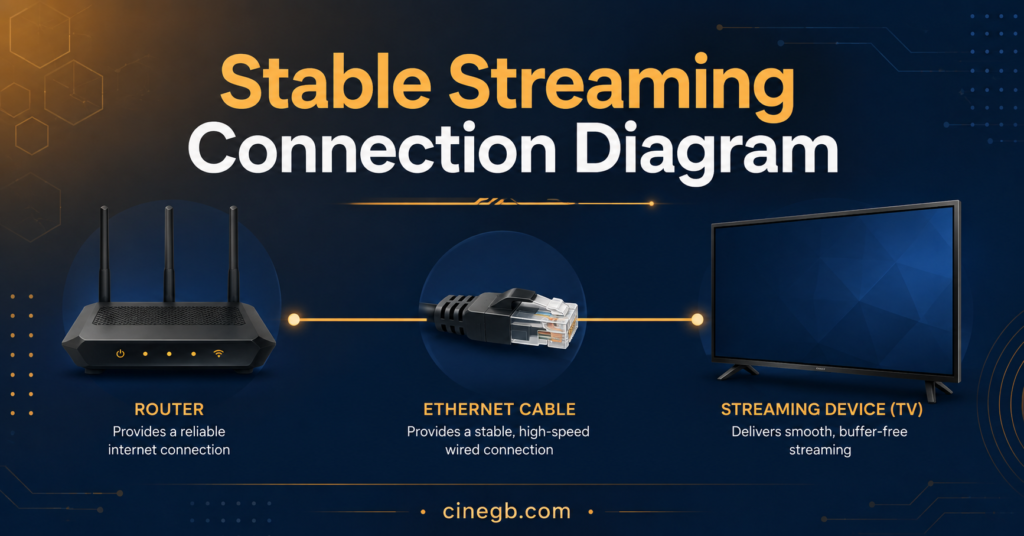
A wired Ethernet connection to the Android TV box, where physically possible, removes most Wi-Fi-related buffering on its own. If Wi-Fi is the only option, connecting to the 5GHz band rather than 2.4GHz usually gives a noticeably steadier stream, particularly in busier households with several devices competing for bandwidth.
Inside the player app, checking whether an adaptive or fixed bitrate setting is available can help too. Locking playback to a slightly lower resolution during peak hours often produces a smoother, more watchable picture than repeatedly buffering at full quality.
Pro tip: Restart the Android TV box after the first successful login rather than immediately browsing channels. This clears any partial EPG cache from the initial sync and prevents guide data appearing blank or mismatched.
Pro tip: If catch-up or replay features aren’t showing, confirm the provider’s package actually includes them before assuming the app is at fault. Not every subscription tier includes catch-up content.
Verifying the Setup Is Working Properly
Before considering the job done, run through a short verification pass rather than assuming everything is fine because the picture loaded once.
Check that the EPG guide populates correctly across at least a few hours of listings, not just the current programme. Confirm catch-up playback works if your package includes it, since forward playback and catch-up sometimes use separate server routes that can fail independently. Test a handful of channels across different categories rather than just the first one on the list, as some category feeds occasionally sit on different servers with different reliability.
If everything checks out here, the setup is genuinely complete rather than working by coincidence.
IPTV Setup Checklist
- Confirm login details or playlist URL are correct and free of typing errors
- Choose an app that supports Xtream Codes API login where available
- Install through the Google Play Store rather than sideloading where possible
- Use a wired connection or 5GHz Wi-Fi for the Android TV box
- Restart the device after the first successful sync
- Test EPG data across several hours, not just the current show
- Check catch-up playback separately if included in the package
- Note down the server address and login details somewhere safe for future reference
Frequently Asked Questions
Do I need a VPN to use IPTV on Android TV?
Not for the technology itself. IPTV is simply a delivery method, and whether a VPN is relevant depends entirely on your specific provider’s terms and the legitimacy of the content being accessed, which is separate from the setup process covered here.
Why does my Android TV app keep crashing after installation?
This usually points to insufficient device memory or an outdated Android TV firmware version. Clearing the app’s cache and checking for a system update before reinstalling resolves most crash loops.
Can I use the same IPTV login on my phone and Android TV at once?
Only if your subscription includes multiple connections. A single-connection account will typically kick one device off when the other logs in, or refuse the second login entirely.
Why is my EPG guide showing the wrong times?
This is almost always a device timezone setting rather than a provider issue. Checking that the Android TV’s system timezone matches your actual location usually corrects it immediately.
Does a wired connection really make that much difference?
For anything above standard definition, yes. Wi-Fi interference from neighbouring networks and other household devices is one of the most common causes of buffering that people mistake for a subscription problem.
Conclusion
A working IPTV Android TV Setup Guide really comes down to getting three things right: an app that handles Xtream Codes properly, accurate login details entered without typos, and a network connection stable enough to carry the stream without interruption. Most problems that look like app faults or subscription issues trace back to one of those three areas once you check them in order. If channels still won’t load after working through the steps above, contacting your provider to confirm the account’s connection status is a faster next step than continuing to troubleshoot the device alone.
For further reading on choosing a suitable IPTV reseller panel for UK customers, cinegb.com covers panel options and account setup in more depth.
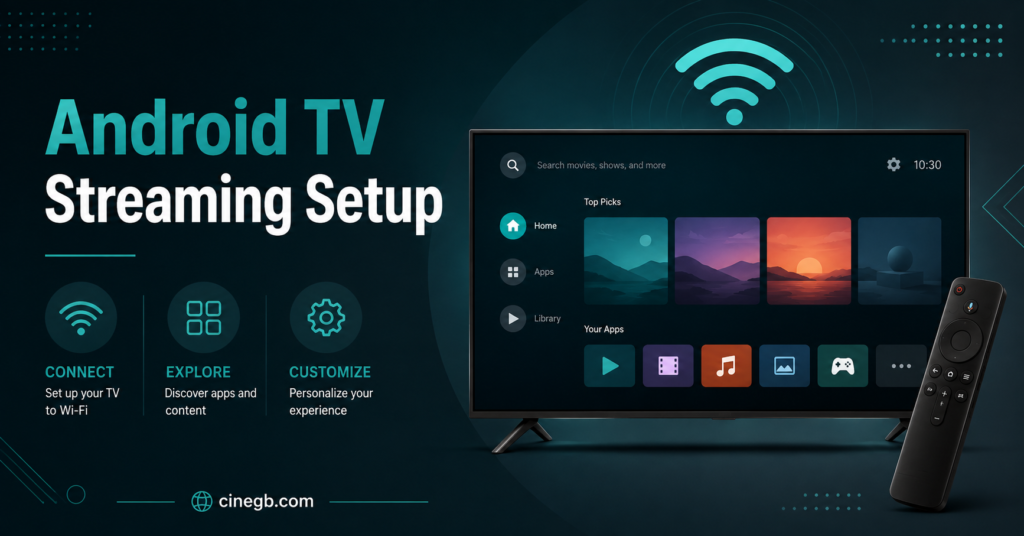
Image Title: Android TV Streaming Setup
Image Prompt: Modern professional blog illustration showing a stylised Android TV interface with a streaming app grid, a remote control, and a Wi-Fi signal icon, dark teal and charcoal colour palette, non-white background, clean moderately detailed design, web-friendly composition with clear visual hierarchy, small cinegb.com text near the bottom, no logos or branded devices, no broadcaster or entertainment artwork
Image Title: Stable Streaming Connection Diagram
Image Prompt: Modern professional blog illustration showing a simple network diagram with a router, an Ethernet cable, and a television-shaped device connected by clean lines, warm amber and navy colour palette, non-white background, clean moderately detailed design with two to four visual elements, web-friendly composition, small cinegb.com text near the bottom, no logos or broadcaster branding, no entertainment artwork