
Contact Us

Best IPTV Player Apps: Top Streaming Apps Compared 2026
The best IPTV player apps in 2026 aren’t a single winner you install everywhere. Which one actually works well for you depends on whether you’re watching on a Firestick, an Android TV box, or a Samsung or LG smart TV, since each platform handles apps differently and rewards a different kind of player. TiviMate and IPTV Smarters Pro dominate Firestick and Android TV, while Samsung and LG owners generally get a better result from an app built specifically for Tizen or webOS rather than a sideloaded Android player. The rest of this guide breaks that down properly, device by device, so you’re not left guessing which app suits the screen you actually own.
Best IPTV Player Apps at a Glance
If you only read one section, read this one. The table below matches each common device to the player that tends to work best on it, based on how each app is actually built rather than which one gets mentioned most often.
| Device | Strongest option | Why it fits |
|---|---|---|
| Firestick / Fire TV | TiviMate | Remote-friendly EPG, multi-playlist support, fastest channel switching |
| Android TV box | TiviMate or IPTV Smarters Pro | Both run natively on Android TV without extra tweaking |
| Samsung Smart TV | Smart IPTV (SIPTV) | Built for Tizen, installs from the Samsung store, no sideloading needed |
| LG Smart TV | Smart IPTV (SIPTV) | Same MAC-based activation model works cleanly on webOS |
| iPhone / iPad | GSE Smart IPTV | Touch-friendly layout with reliable playlist import on iOS |
What Actually Matters When You’re Choosing a Player
Most comparisons list features without explaining why any of them matter, so here’s the short version. An electronic programme guide that only shows the current programme is barely worth having; a proper EPG lets you see what’s on for the next several hours and jump straight to it. Multi-playlist support matters if you use more than one provider or run a backup source, since switching between two separate apps to check both is tedious. External player support (the ability to hand playback off to something like an ExoPlayer or hardware decoder) often fixes stuttering that the app’s built-in player can’t handle on older hardware. And sideloading requirements matter more than people expect: an app that isn’t in an official store needs to be installed manually, which is fine on a Firestick or Android box but usually isn’t possible at all on a Samsung or LG TV.
Pro tip: Before settling on a paid app, install the free tier first and load your actual playlist into it. A player that looks great in review screenshots can still behave differently with your specific channel list and provider.
Best IPTV Player Apps for Firestick and Fire TV
Firestick users generally have the widest choice, and it’s here that the differences between apps show up most clearly. TiviMate has become the default recommendation because its guide behaves like a real cable box grid, playlist switching is instant, and the remote controls feel like they were designed for a television rather than adapted from a phone app. The free version covers basic viewing, while the paid tier adds recording, multiple simultaneous playlists and picture-in-picture, features that matter more to households running several providers than to someone with a single IPTV subscription.
IPTV Smarters Pro is the more forgiving option if TiviMate’s setup screens feel like overkill. It walks you through entering your login details, supports external players such as VLC for troubleshooting playback issues, and works identically across Firestick, Android and iOS, which is genuinely useful if your household mixes device types. XCIPTV is worth mentioning as a completely free alternative that includes DVR-style recording and a tidier on-demand layout than most free apps manage, though it has to be sideloaded through the Downloader app rather than installed from the Amazon Appstore.
Android TV Boxes: Same Apps, Different Priorities
Android TV boxes run the same apps as Firestick in most cases, since both platforms sit on Android underneath, but the priorities shift slightly. Storage tends to be more generous on dedicated boxes, so running two players side by side to compare EPG data or test a second provider isn’t the squeeze it can be on a base-model Firestick. OTT Navigator is worth a mention here specifically because it supports multiple EPG sources at once and lets you merge programme data from different feeds, a feature that matters more to people running several providers than to a single-subscription household.
The trade-off with Android TV boxes is inconsistency between manufacturers. Remote layouts, default launchers and pre-installed software vary enough that an app which runs smoothly on one box can feel sluggish on another with near-identical specifications. If a player seems slower than expected, check the box’s available RAM before blaming the app itself.
Getting IPTV Onto Samsung and LG Smart TVs
Samsung and LG televisions run their own operating systems (Tizen and webOS respectively), and neither one supports Android APKs, so the Firestick playbook doesn’t transfer across. Smart IPTV, usually shortened to SIPTV, is the standard solution here. It installs directly from the Samsung or LG content store, then activates using your television’s MAC address rather than a username and password, which your IPTV provider will need to register on their end before it works.
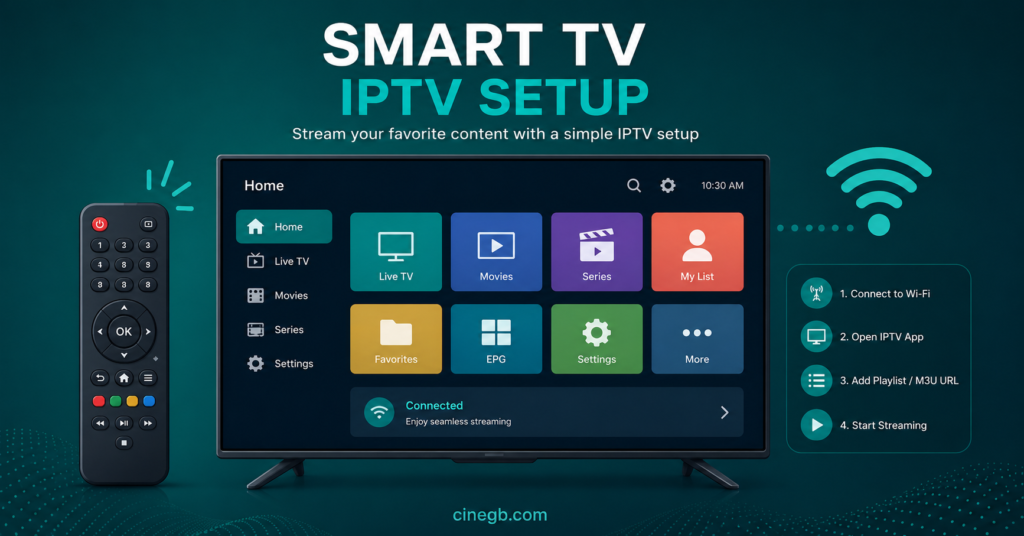
This MAC-based approach is less flexible than the login-based system used on Firestick apps: if you change your router or your TV’s network settings reset the MAC address, you may need to re-register with your provider. It’s a genuine limitation worth knowing before you buy, not a reason to avoid Samsung or LG altogether. For households that want to skip the sideloading question entirely, some providers bundle their own branded player with a IPTV subscription so the TV app and the login arrive together rather than as two separate steps; Cine GB’s device-specific apps work this way for Samsung and LG, if you’d rather not manage a separate third-party player and provider pairing.
Common Mistakes That Cause Buffering, Crashes and Wasted Subscriptions
A surprising number of “my IPTV keeps buffering” complaints have nothing to do with the provider and everything to do with how the app was set up. Loading the same playlist into three different apps at once, each polling the server in the background, can throttle your own connection without you realising it. Leaving an old, abandoned app installed alongside a new one sometimes causes both to compete for the same cached EPG data, producing odd glitches that look like a server problem but aren’t. And installing an app from an unofficial APK source outside the Amazon Appstore, Google Play, or the manufacturer’s own store carries a real risk of bundled adware, particularly with lesser-known “all in one” players that promise every feature for free.
Pro tip: If a channel buffers in one app but plays cleanly in another using the exact same playlist, the problem is almost always the app’s player engine rather than your internet connection or your provider.
Pro tip: Keep no more than one or two player apps installed at a time. Beyond that, EPG caching and background refresh cycles start working against each other rather than helping.
For anyone managing this on behalf of customers rather than just themselves, whether as part of an IPTV reseller Panel business or informal tech support for family, having a short list of tested apps to hand saves a lot of repeated troubleshooting. Cine GB’s setup guides cover device-specific installation steps if you’d rather point someone to a walkthrough than talk them through it live.
Frequently Asked Questions
Do I need a different app for every device I own?
Not necessarily. IPTV Smarters Pro is built to run on Firestick, Android, iOS, Windows and Mac using the same login, which is convenient if your household has a mix of screens. Samsung and LG televisions are the exception, since their operating systems require a Tizen or webOS specific app rather than an Android one.
Why does the same provider look better in one app than another?
The provider only supplies the stream; the app decides how it’s decoded and displayed. Two apps pulling from the identical playlist can produce noticeably different picture quality and buffering behaviour depending on how each one handles the video player underneath.
Is a paid IPTV player worth it over the free version?
Usually only if you specifically need what the paid tier unlocks, most commonly recording, multiple simultaneous playlists, or picture-in-picture. If you watch from a single provider on one device, the free tier of most major players covers everything you’ll actually use.
Can I use the same player app if I switch IPTV providers?
In most cases, yes. Apps like TiviMate and IPTV Smarters Pro work with Xtream Codes or M3U playlists generically, so changing providers usually just means entering new login details rather than reinstalling anything.
Why won’t an app install on my Samsung or LG TV?
Samsung and LG TVs don’t accept Android APK files at all. Anything that installs on a Firestick has to be found through the television’s own content store instead, which is why the available app list looks completely different on a smart TV than it does on Android-based devices.
Conclusion
There’s no single best IPTV player app that suits every device equally, and treating the question that way is how people end up with an app that fights their hardware instead of working with it. TiviMate and IPTV Smarters Pro cover Firestick and Android TV well, Smart IPTV handles the very different requirements of Samsung and LG televisions, and the free tier of most of these apps is genuinely enough for anyone watching from a single provider on one screen. Start with whichever option matches your actual device from the table above, test it with your real playlist before paying for anything, and only look at a paid tier once you know which specific feature you’re actually missing.
Setup Checklist
- Confirm which operating system your device actually runs (Fire OS, Android TV, Tizen, or webOS) before picking an app
- Test the free version of an app with your real playlist before paying for a premium tier
- Avoid running more than one or two player apps on the same device at once
- Only install APKs from the Amazon Appstore, Google Play, or a source you’ve verified directly
- For Samsung or LG, confirm your provider can register your TV’s MAC address before buying
- Keep note of which app works best on which device if you manage more than one screen
[…] tells you far more than any advertised speed figure. Providers offering a free trial and paid IPTV subscription tiers are usually the easiest way to test this without […]