Contact Us
How to Setup IPTV on Amazon Firestick in UK & Europe 2026
To Setup IPTV on Amazon Firestick in UK & Europe, you install a compatible IPTV player app from the Amazon Appstore or by sideloading, then enter the login details or M3U line your provider gives you. Most people are watching within ten to fifteen minutes once the app is installed and the connection details are entered correctly. The rest of this guide walks through each step, the apps worth using, and what to check if playback will not start.
[ez-toc]
Why Firestick Is Still a Popular Choice for IPTV in 2026
Amazon’s Fire TV Stick remains one of the cheapest ways to turn an ordinary television into a smart streaming device, which is exactly why so many UK and European households use it for IPTV. It is compact, it runs Fire OS which is based on Android, and it supports the handful of IPTV player apps that most services rely on.
That said, a Firestick is not the most powerful device on the market. Older models such as the original Fire TV Stick can struggle with 4K content or apps that demand more processing power. If you are buying new specifically for IPTV, the Fire TV Stick 4K Max tends to give a smoother experience than entry-level models.
Pro tip: Check which Firestick model you own under Settings, then My Fire TV, then About. This tells you the exact hardware version, which matters if an app refuses to install or keeps crashing.
What You Need Before You Start
Before touching the remote, it helps to have a few things ready. This avoids the common problem of starting the setup, getting halfway through, and realising a detail is missing.
- A Firestick connected to power and to your television’s HDMI port
- A stable home broadband connection, ideally with a router that supports 5GHz Wi-Fi or a wired Ethernet adapter for the Firestick
- Your IPTV login details, which is usually a username and password, or an M3U playlist URL, or a Xtream Codes style API address depending on how your provider issues access
- An Amazon account signed into the Firestick itself
If your provider has sent an activation code instead of a username and password, keep that code somewhere easy to find, since some apps ask for it during the first launch rather than later.
Choosing an IPTV Player App for Firestick
There is no single official IPTV app for Firestick, because IPTV itself is just a method of delivering television over the internet rather than a specific brand. Instead, you choose a player app that can read the connection details your provider gives you.
Some of the most widely used players on Fire TV include IPTV Smarters Pro, TiviMate, and Ora Player, alongside several others available through the Amazon Appstore or through sideloading tools such as Downloader. Each one has a slightly different interface, but they all do the same basic job: they take your login or playlist information and turn it into a working channel list with an electronic programme guide.
| Player Type | Best For | Limitation |
|---|---|---|
| Store app (Appstore) | Simplicity, no sideloading needed | Fewer customisation options |
| Sideloaded APK | More features, custom EPG | Requires enabling unknown sources |
| Provider’s own app | Matches provider’s exact setup | Only works with that provider |
Pro tip: If your provider supplies setup instructions naming a specific app, use that one first. Mixing an unsupported player with a provider’s playlist format is a common cause of channels loading incorrectly.
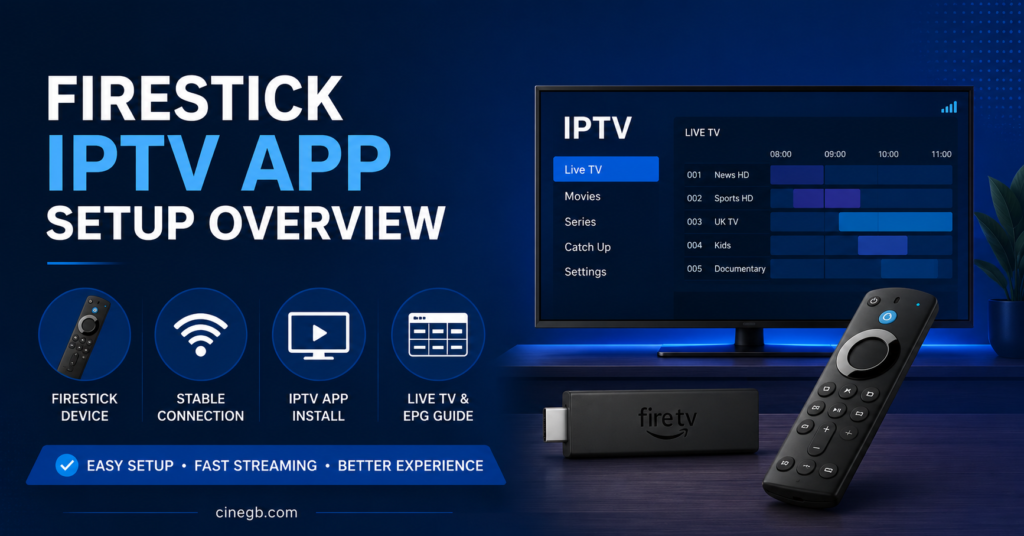
Step-by-Step: Setup IPTV on Amazon Firestick in UK & Europe
This is the process most UK and European users follow, regardless of which player app they choose.
- Turn on your Firestick and go to the search icon. Type the name of your chosen IPTV player app and select it from the results.
- Install the app and wait for it to finish downloading. On a typical UK broadband connection this takes under a minute.
- Open the app and choose how you want to add your service, usually a choice between Xtream Codes login, M3U URL, or manual entry.
- Enter your provider’s details exactly as given. A single typo in a URL or password is the single most common reason setup fails on the first attempt.
- Wait for the channel list and EPG to load. This can take anywhere from a few seconds to a couple of minutes depending on how large the channel list is.
- Test a few channels across different categories rather than just one, since some categories can behave differently even on the same service.
If you are sideloading an app rather than installing from the Appstore, you will need to enable Apps From Unknown Sources under Settings, then My Fire TV, then Developer Options, before the Downloader app can install anything outside the official store.
Pro tip: Restart the Firestick once after the initial setup is complete. This clears temporary memory and often resolves minor buffering that appears in the first few minutes of use.
Common Setup Problems and How to Approach Them
Not every issue has one single fix, since Firestick problems usually come from one of three places: the device itself, the home network, or the provider’s server.
| Problem | Likely Reason | Next Action |
|---|---|---|
| App installs but will not open | Firestick storage nearly full | Clear cache or uninstall unused apps |
| Channels load slowly | Wi-Fi signal weak at TV location | Move router closer or use Ethernet adapter |
| Playback freezes mid-programme | Local network congestion or provider server load | Test at a different time, check other devices |
| Login rejected | Incorrect details or expired subscription | Recheck details, contact provider support |
It is worth remembering that IPTV performance depends heavily on your own internet connection, not only on the provider. A service can be working perfectly and still stutter on a household connection that is already stretched by several other streaming devices.
Storage and Performance on Older Firestick Models
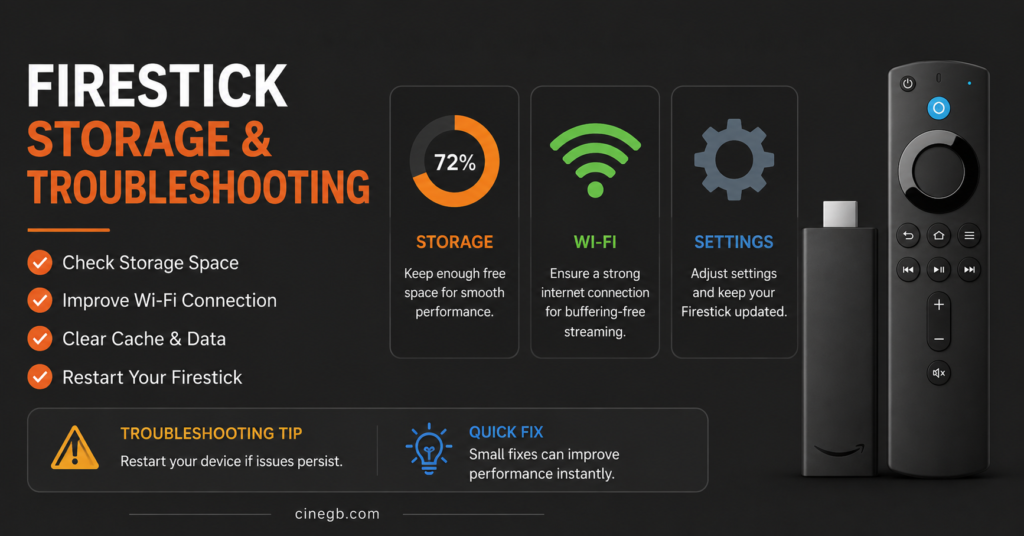
Older Firestick models, particularly the original 2014 and 2016 versions, have limited internal storage, sometimes as little as 8GB shared between the operating system and every app installed. IPTV player apps that cache large EPG data can fill this quickly.
If your Firestick feels sluggish after installing an IPTV app, go to Settings, then Applications, then Manage Installed Applications, and clear the cache for the player app specifically. Avoid installing several different IPTV apps at once purely to compare them, since this is one of the fastest ways to run out of space on an entry-level device.
Setting Up IPTV for a Household Across UK and European Locations
Households that split time between the UK and mainland Europe, or that have family in more than one country, often want the same IPTV setup working reliably in both places. A few practical points make this smoother.
First, check whether your provider’s servers are optimised for a single region or genuinely built for both UK and EU traffic, since this affects buffering when you travel. Second, keep a written note of your exact login details rather than relying on memory, particularly if more than one household member manages the Firestick. Third, if you plan to use the same subscription on multiple Firesticks at once, check your provider’s device or connection limit first, since most services cap simultaneous streams per account.
You can compare current IPTV subscription plans for UK and European coverage to see how device limits and pricing structures typically work before choosing a plan.
Subscriber Guidance: What to Check Before You Commit
If you are setting this up for personal viewing rather than resale, a few checks before paying protect you from a frustrating first week.
- Ask whether a free or low-cost trial is available so you can test picture quality and reliability on your own network first
- Confirm which devices are supported beyond Firestick, in case you later add a Smart TV or phone
- Read the refund terms before paying for a longer plan
- Ask what happens if a channel drops, and whether that counts toward any service guarantee
Our general setup and troubleshooting guides cover device-specific instructions if you are also setting up IPTV on a Smart TV or Android box alongside your Firestick.
Reseller Guidance: Supporting Customers Through Firestick Setup
If you sell IPTV access rather than only using it yourself, Firestick setup questions will make up a large share of your support requests, simply because it is one of the most common devices customers own. A clear, repeatable setup message you can send to every new customer saves time on both sides.
Keep a short, plain-English setup message ready that names the exact app you recommend, the order of steps, and a note about what to do if the first channel does not load. Vague instructions create repeat tickets, while a specific message with screenshots or a short video usually resolves setup in one exchange.
If you manage customer accounts through a reseller dashboard, check that trial or demo access is available so new customers can test their Firestick setup before committing to a paid plan. You can review how credit-based access typically works through an IPTV reseller panel if you are building out this side of the business.
A Note on Legitimate Access
IPTV itself is simply a technology for delivering television over an internet connection rather than through a satellite dish or aerial. Whether a particular service is legitimate depends on whether the provider holds proper rights and permissions for the content it distributes, not on how professional its website or app looks, and not on which payment method it accepts.
Before subscribing to any service, it is reasonable to check how transparent the provider is about who runs it, what its terms of service say, and how refunds are handled. A provider that avoids straightforward questions about content rights is worth treating with caution.
Setup IPTV on Amazon Firestick in UK & Europe: Final Checks
Once your channels are loading and playback looks stable, a short final check saves problems later. Confirm the EPG (programme guide) is showing correct times, since an EPG mismatch can make good content look broken even when streaming itself is fine. Check that your chosen player app updates its channel list automatically, or find out how often you need to refresh it manually.
If you plan to Setup IPTV on Amazon Firestick in UK & Europe for more than one household member, consider creating separate favourites lists within the app rather than sharing one login’s settings, since this avoids one person’s changes affecting everyone else’s viewing.
Frequently Asked Questions
Do I need to jailbreak my Firestick to use IPTV?
No. Jailbreaking is not required. Installing an IPTV player app from the Amazon Appstore, or sideloading one through Downloader, is enough to get IPTV working on a standard, unmodified Firestick.
Which Firestick model works best for IPTV?
Any current Firestick model will run IPTV apps, but newer models such as the Fire TV Stick 4K or 4K Max generally handle higher-quality streams and larger channel lists more smoothly than older, lower-memory versions.
Why does my IPTV app show channels but nothing plays?
This usually points to either a weak Wi-Fi connection at the television, a provider server issue, or an outdated app version. Testing another channel and checking your connection speed narrows down which one it is.
Can I use the same IPTV login on my Firestick and my phone at the same time?
This depends on your provider’s connection limit. Many services only allow one or two simultaneous streams per subscription, so using it on two devices at once may cause one stream to stop.
Is a VPN required to Setup IPTV on Amazon Firestick in UK & Europe?
Not for the setup process itself. A VPN is a separate privacy and security tool, and whether to use one is a personal choice unrelated to whether the IPTV app itself will install and run.
How do I update my IPTV app on Firestick?
If installed through the Amazon Appstore, updates usually happen automatically or can be triggered manually from the app’s store page. Sideloaded apps need to be reinstalled with the newer APK file when an update is released.