
Contact Us

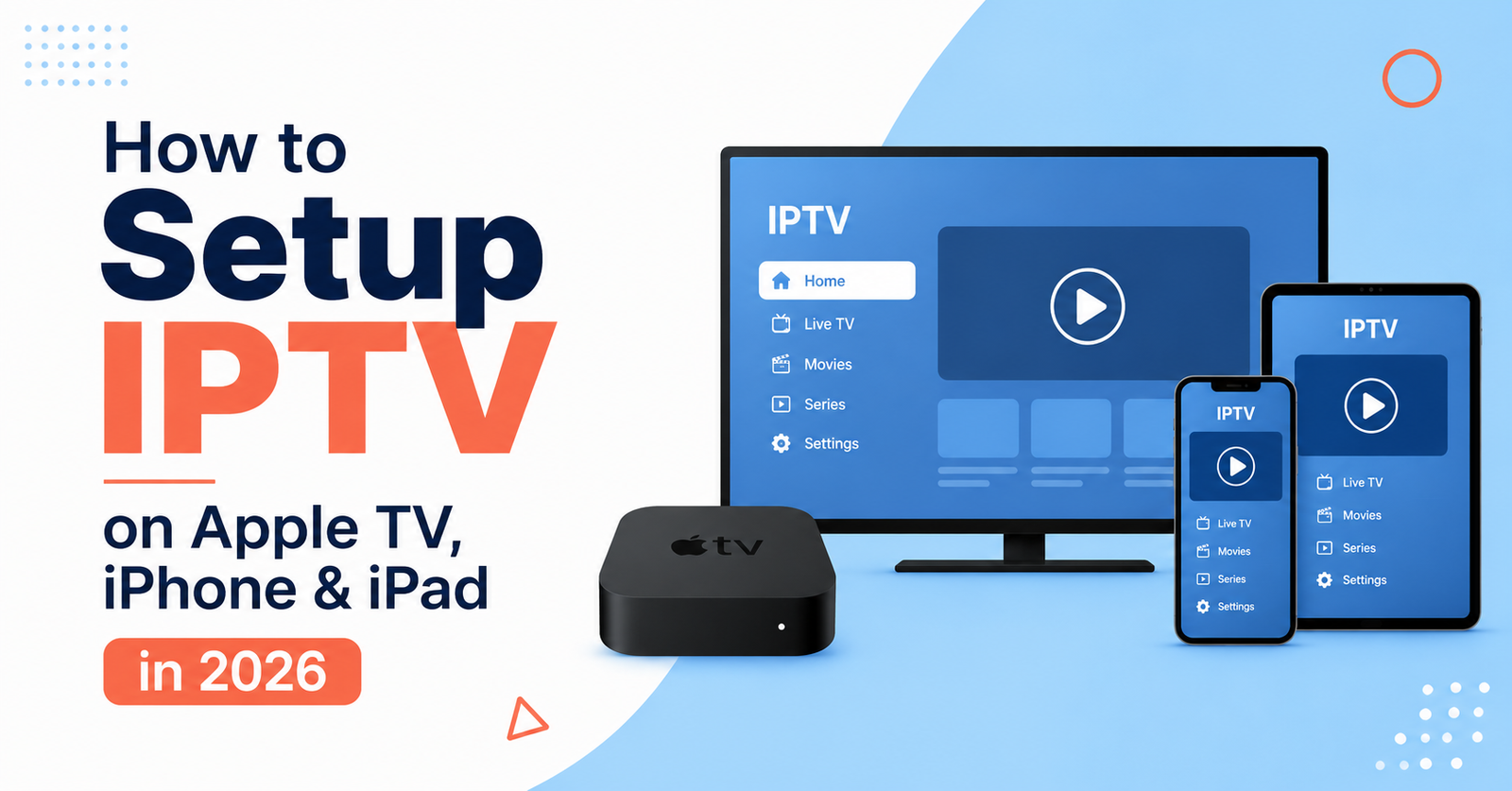
How to Setup IPTV on Apple TV, iPhone & iPad in 2026
Setup IPTV on Apple TV, iPhone & iPad by installing a compatible player app on each device, entering your provider’s playlist or login details correctly, and confirming playback before you rely on it day to day. The process is broadly similar across all three, though Apple TV and the two handheld devices handle app installation and remote control slightly differently, and getting those small differences wrong is usually where people get stuck.
What You Actually Need Before Touching Any Settings
Before opening an app on any Apple device, you need three things sorted: a working internet connection with enough bandwidth for streaming, a player app that supports either M3U8 playlist links or Xtream Codes style logins, and the actual connection details from your provider, whether that’s a playlist URL, or a server address with a username and password. Missing or mistyped details are the single biggest cause of setup failures, far more common than any device-specific fault.
It also helps to know which type of login your provider issues, because the two main formats ask for different fields inside the app. A playlist link is usually one long web address. An Xtream Codes login asks separately for a server URL, username and password. Confusing the two, or pasting one into the wrong field, produces the same generic “unable to load” message regardless of the actual cause.
Setup IPTV on Apple TV, iPhone & iPad
The core setup sequence doesn’t change much between devices. You install a player app suited to your login type, open it, enter the connection details exactly as supplied, and let it pull down the channel list. Where things diverge is in how each device handles app installation, background permissions and remote or touch navigation, so it’s worth treating each one on its own terms rather than assuming a method that worked on one will translate directly to another.
Apple TV: Installing and Configuring a Player App
On Apple TV, search the App Store directly from the device rather than trying to send an app from a phone, since not every player app supports AirPlay-style installation. Once installed, open the app and look for an option to add a playlist or account, usually found in a settings or profile section rather than the main screen. Enter the server address and login precisely, including any port numbers your provider specifies, since Apple TV apps tend to be less forgiving of small formatting errors than their mobile equivalents.
Apple TV’s remote-based navigation also means typing long server URLs by hand can introduce mistakes. Where the app supports it, use the Apple TV companion feature on your iPhone to type the details there and have them sync across, rather than tapping out a fifty-character web address one letter at a time on the on-screen keyboard.
iPhone: Getting a Working App Store Player
On iPhone, download a player app that matches your login format, then add your account details in the same way. The main practical difference is screen size and how channel lists render, which matters less for setup and more for daily use. One thing worth checking immediately after adding your account is whether the app has permission to run background refresh, since some players need this to keep the electronic programme guide updated.
iPad: What’s Different (and What Isn’t)
iPad setup is functionally identical to iPhone in almost every respect, since both run the same operating system family and the same App Store catalogue. The larger screen makes split-view and picture-in-picture playback genuinely more usable, so if your player app supports either, it’s worth enabling them, particularly if you plan to watch while doing something else on the same device.
Choosing the Right App for Each Device
| Device | What to look for in an app | Check first |
|---|---|---|
| Apple TV | Native tvOS support with playlist or Xtream login fields | Whether it accepts port numbers separately from the server URL |
| iPhone | Background refresh support for EPG updates | App permissions under device settings |
| iPad | Split-view or picture-in-picture compatibility | Whether the app scales properly on larger screens |
Common Setup Mistakes That Cause Playback Problems
Most failed setups trace back to a handful of repeat mistakes. Typing a server address with a trailing slash or missing “http” prefix is one. Entering an Xtream username or password with extra spaces, which iOS autocorrect sometimes inserts without you noticing, is another. Using an expired or paused subscription and assuming the app itself is broken is a third, and it’s worth ruling out before spending time reinstalling anything.
Pro tip: Copy and paste connection details directly from wherever your provider sent them rather than retyping them by hand, since a single mistyped character will produce the same vague error as a genuinely broken login.
Verifying the Setup Actually Works
Once the channel list loads, don’t stop there. Open a handful of channels across different categories, not just the first one on the list, since a partially working setup can still load some content while failing on others due to server load balancing on the provider’s side. Check that the electronic programme guide populates with actual schedule data rather than blank entries, and confirm playback holds steady for several minutes rather than just the first few seconds, which is often where buffering issues first appear.
Getting Reliable Performance on Apple Devices
A wired connection to your router, or at minimum a strong 5GHz Wi-Fi signal, makes a bigger difference to IPTV stability on Apple TV than almost any in-app setting. On iPhone and iPad, mobile data can work for IPTV but tends to be more variable, so if you’re seeing frequent buffering away from home, that’s usually a connection issue rather than an app fault. Closing other bandwidth-heavy apps running in the background can also help, particularly on iPhone where multiple apps competing for the same network connection is a common cause of dropped streams.
Pro tip: If picture quality looks noticeably worse on iPad than on Apple TV using the same account, check whether the app has a manual quality setting, since some players default to a lower stream quality on mobile to save data unless told otherwise.
When Something Won’t Load: A Quick Diagnosis
If channels won’t load at all, check the login details first, then the internet connection, then whether the subscription itself is active. If channels load but freeze or buffer constantly, the fault is almost always network-related rather than app-related. If the app crashes on open, an outdated version of the app or the operating system is worth checking before assuming anything else is wrong.
For anyone still deciding on a provider or IPTV reseller panel before going through this setup, it’s worth comparing IPTV reseller options to understand what a working connection actually looks like from the provider side.
Frequently Asked Questions
Do I need a different app for each Apple device?
Not necessarily. Many player apps designed for tvOS, iOS and iPadOS use the same account details across devices, though the app itself is usually installed separately on each one from its own App Store listing.
Why does the electronic programme guide show no data on Apple TV but works fine on iPhone?
This is usually a background refresh or caching issue within the app rather than a device fault. Reopening the app or manually refreshing the guide from its settings menu often resolves it.
Can I use the same login on Apple TV, iPhone and iPad at the same time?
That depends entirely on your provider’s connection limits, which vary by plan. Trying to stream on more than the permitted number of devices simultaneously typically causes one stream to disconnect or fail to load.
Is a VPN necessary for IPTV setup on Apple devices?
Not for the setup process itself. Whether a VPN is useful depends on your specific network conditions and provider requirements, and it isn’t a standard requirement for getting IPTV working.
Why does playback work on Wi-Fi but not on mobile data?
Mobile network speed and stability vary far more than home broadband, and some carriers throttle sustained video streaming. If IPTV only struggles on mobile data, the connection itself is the most likely cause rather than the app or account.
Setting Up IPTV Across Apple Devices: The Practical Summary
Getting this right comes down to accuracy rather than complexity. Setup IPTV on Apple TV, iPhone & iPad by matching the right app to your login type, entering connection details without typos, and checking playback across several channels before assuming everything works. Most problems that look like device faults turn out to be either a network issue or a small error in how the login was entered, so working through those two possibilities first will resolve the majority of setup problems without needing to reinstall anything.
Setup Verification Checklist
- Confirm the app matches your login type (playlist link or Xtream Codes)
- Double-check server address, username and password for typos or extra spaces
- Test playback on at least three different channels, not just one
- Confirm the EPG is showing real schedule data
- Check background app refresh is enabled on iPhone and iPad
- Verify your connection is stable via Wi-Fi before troubleshooting mobile data separately
- Note any device-specific quality settings that might be limiting picture on mobile
[…] to skip the sideloading question entirely, some providers bundle their own branded player with a IPTV subscription so the TV app and the login arrive together rather than as two separate steps; Cine GB’s […]