
Contact Us

Internet Speed for IPTV: What You Actually Need in 2026
Internet Speed for IPTV depends far more on resolution and connection stability than on the headline number printed on your broadband bill. A household streaming standard definition channels can get by on very little, while a single 4K stream can quietly eat up a large share of an average home connection. Most buffering complaints trace back to a mismatch between what a plan advertises and what actually reaches the streaming device, not to the IPTV service itself.
Internet Speed for IPTV by Resolution
Every resolution has a rough bandwidth floor below which the stream will stutter, and a more comfortable figure that leaves room for normal fluctuation. These numbers assume one device streaming on its own, with nothing else competing for the connection.
These figures are widely used industry rules of thumb rather than fixed guarantees. Compression method, frame rate and how the provider’s servers are handling peak-time load all shift the real number up or down slightly.
Why Your Real Speed Rarely Matches What You Pay For
A speed test running on a laptop plugged straight into the router almost never reflects what an IPTV app on a Firestick or Smart TV actually receives. Wi-Fi signal loss, an old router firmware version, and other devices quietly syncing photos or downloading updates in the background all take a slice of the same connection. A 40 Mbps plan can easily deliver under 15 Mbps to a streaming box sitting two rooms away from the router, which is exactly the range where 4K starts to stutter and HD becomes borderline.
Pro tip: Run a speed test directly from the streaming device itself, not from a phone or laptop sitting next to the router. Most IPTV apps and Smart TV browsers support basic speed test sites, and the result will be far closer to what your stream is actually getting.
Streaming to More Than One Screen at Once
A single stream figure is only useful if only one screen is active. Add a second household member watching in another room, and the numbers stack. Two HD IPTV streams running together need roughly double the HD figure, not the same total, and a household running one 4K stream alongside a couple of HD streams elsewhere in the house should be planning for 60 Mbps or more once everything else on the network is accounted for. Video calls, cloud backups and console downloads all draw from the same pool, so the headline plan speed needs headroom above the simple sum of your streams, not an exact match to it.
Wired Connections Still Outperform Wi-Fi for IPTV
Ethernet removes most of the variables that cause buffering on IPTV specifically, because live streams are far less forgiving of small drops than a downloaded file or a cached video. A cable running from the router to the streaming box gives a stable, low latency path that Wi-Fi struggles to match in busy households, older properties with thick walls, or flats where dozens of neighbouring networks are competing for the same wireless channels. Where running a cable genuinely is not practical, a mesh Wi-Fi system or a powerline adapter placed near the TV usually helps more than upgrading the broadband plan itself.
Signs Your Connection Is Not the Problem
Buffering does not automatically mean the internet speed is at fault, and blaming the connection first often wastes time on the wrong fix.
- If other streaming apps and video calls run smoothly at the same time, the base connection is probably fine.
- If buffering only happens on specific channels or at specific times of day, the issue is more likely on the provider’s server side.
- If the picture freezes but the app itself still responds normally, that points to a brief drop in throughput rather than a genuinely slow line.
- If every app on the same device struggles at once, including web browsing, the fault sits with the connection or the device itself.
Pro tip: Restart the router and the streaming device separately before assuming the internet speed itself needs upgrading. A surprising number of buffering complaints clear up after a simple reboot flushes a stuck connection.
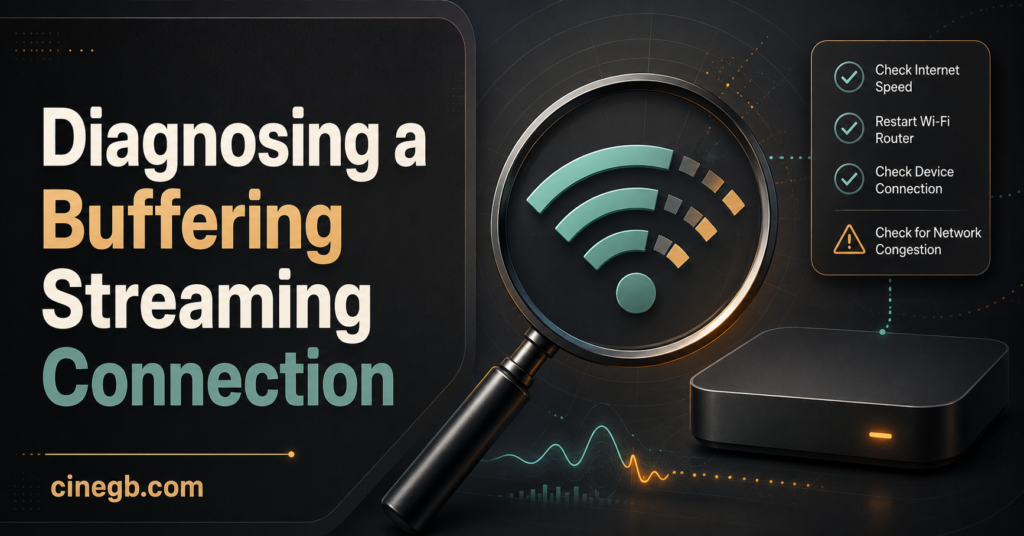
Testing Your Line Properly Before You Blame the Provider
A single speed test taken once is rarely enough to judge whether a connection is genuinely suited to IPTV. Testing at three different points across the day, including the early evening peak when most of the street is online, gives a far more honest picture than one lucky reading taken at midday. It is also worth testing on both Wi-Fi and a wired connection where possible, since the gap between the two often reveals exactly where the bottleneck sits. Anyone regularly checking their line before ordering or upgrading a plan can find setup and troubleshooting walkthroughs in the Cine GB guides section, including notes on choosing the right subscription tier for the number of screens in a household.
Pro tip: If your provider offers a free trial, use it specifically to test peak-time performance before committing. A trial run during a busy evening tells you far more than any advertised speed figure. Providers offering a free trial and paid IPTV subscription tiers are usually the easiest way to test this without risk.
What This Means for Resellers
Anyone running an IPTV reseller business hears “the app is buffering” from customers more often than any other complaint, and a large share of those tickets are connection related rather than panel related. Pointing customers toward a proper multi-time-of-day speed test before escalating a support ticket saves time on both sides, and it is worth including basic speed guidance in the setup instructions sent out with new accounts. Anyone building or scaling this side of the business can review credit and setup options on the Cine GB reseller panel page, and compatible apps for customer devices are listed on the downloads page.
Connection Checklist Before You Contact Support
- Run a speed test directly from the streaming device, not a separate laptop or phone
- Test at three different times, including peak evening hours
- Compare results on Wi-Fi against a wired connection if one is available
- Restart the router and the streaming device separately
- Check whether other devices are downloading or backing up in the background
- Move the streaming box closer to the router or add a mesh point if Wi-Fi is weak
- Confirm the issue happens on multiple channels, not just one
IPTV Speed Frequently Asked Questions
Is 20 Mbps enough for IPTV?
Yes for HD and most Full HD content, provided nothing else on the network is competing for that same bandwidth at the same time.
Why does IPTV buffer even with fast broadband?
Usually because Wi-Fi signal loss, background downloads, or peak-time congestion on the provider’s side are reducing the speed that actually reaches the streaming device, even though the advertised plan speed is high.
Does upload speed matter for IPTV?
Not directly for watching, since streaming is almost entirely a download activity. Upload speed only matters if the same connection is also being used for video calls or uploading files at the same time.
Can IPTV run on mobile data?
Yes on most modern mobile plans, though data caps and variable signal strength make it far less predictable than a fixed home connection, particularly for 4K.
How much data does IPTV use per hour?
Roughly 1 to 3 GB per hour for HD and considerably more for 4K, so households on capped mobile or satellite plans should budget accordingly.
Internet Speed for IPTV ultimately comes down to matching the resolution you actually watch to the speed that genuinely reaches your streaming device, not the number on the broadband contract. Testing properly, favouring a wired connection where practical, and ruling out background usage will solve the majority of buffering complaints before any upgrade is needed. Where the connection genuinely is too slow for what a household wants to watch, stepping down to a lower resolution or upgrading the plan are the only real fixes.
[…] video call or a streaming app does. That’s the whole concept. What varies enormously between IPTV Panel providers is the quality of the infrastructure carrying that data, and that’s where most of the good […]